


USB Connector Cast Phone to TV
3.6430.00 Reviews
App Specs
- Version
- 2.0.5
- Updated On
- License
- Free
- Downloads
- 1,000,000+
- Developer
- Vidmark Inc.
- Categories
- Libraries & Demo
- Platform
- Android
Screenshots
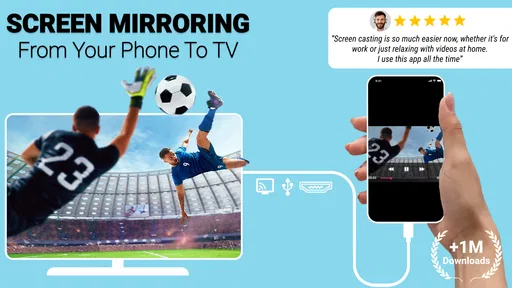
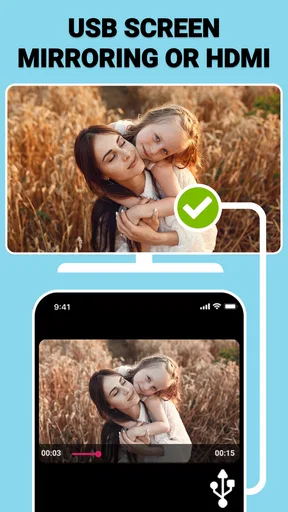
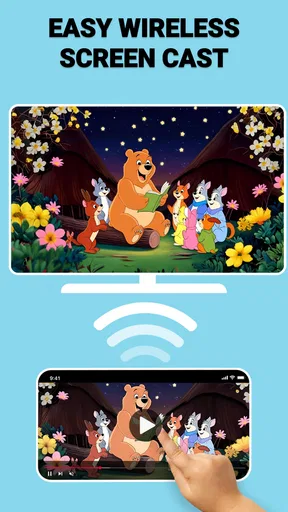
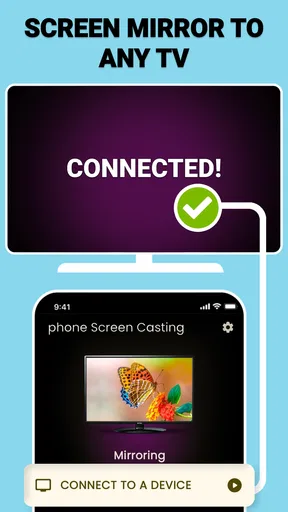
 Analysis by AppCompare
I judge a phone-to-TV app by a few practical things: how much setup it asks of me, whether it works with the screen and connection I already have, and whether mirroring is useful enough to justify another app. USB Connector Cast Phone to TV is aimed at that everyday gap between content on a handset and a television that is easier for several people to watch. It sits in the Libraries & Demo area, is made by Vidmark Inc., and is free to install, though in-app purchases are offered. That makes it worth considering for occasional sharing, but I would check the connection method before relying on it for an important presentation or movie night.
Choose the connection before you choose the app
The name points to USB, while the app’s broader pitch also mentions HDMI and Wi-Fi mirroring. Those routes are not interchangeable in practice: the right one depends on your phone, TV, available ports, and any accessories you already own. Before installing, look at the TV’s inputs and the phone’s supported connection options. A cable that fits physically is not automatically enough to send a picture, so confirming compatibility first can save you from a frustrating round of trial and error.
That distinction matters most if you are buying an adapter just for this. A direct wireless option built into a television or phone may be simpler when both devices support it. A wired connection can be more appealing when you want to avoid relying on the home network, but it adds cable and compatibility questions. I would treat this app as a possible part of a setup, not as a guarantee that every phone can connect to every TV with any USB lead.
Where a dedicated connector is useful
The strongest reason to try it is convenience once a compatible path is in place. A larger display is genuinely handy for showing holiday photos to family, reading a document with someone beside you, or letting a group follow what is on your phone without passing the handset around. For these short, informal sessions, mirroring can be more flexible than opening a separate TV app for every kind of content.
There is also a useful difference between casting a single video and mirroring the whole screen. Casting from a supported media app usually leaves the phone free for other tasks, while screen mirroring shows whatever is currently on the handset. That broader view can help with slides, photos, and apps that do not offer their own cast control. The trade-off is that notifications or unrelated screen activity may become visible, so I would silence alerts and close private material before sharing in a room.
What to check during a first session
I would test the connection with something low-stakes before planning around it. Start with a photo or a short clip, make sure the TV is on the correct input, and only then move to a longer video or presentation. If the picture does not appear, check the cable and the TV input before repeatedly changing settings in the app. This simple order helps separate a connection problem from an app problem and makes troubleshooting less random.
For a casual evening, imagine a friend brings a short video on their phone and everyone wants to see it on the living-room television. A quick test clip lets you confirm the picture and sound before settling in. If the setup takes too long, using the television’s own streaming app or a built-in casting feature may be the better choice that night. The value here is flexibility, not a promise that every connection will be instant.
Worth Reading Before You Choose

Baby Panda World Brings Quick Play to Modern Phones, but Its Game Library Feels Busy

ESPN’s Live Game View Makes Following Close Games Easier

QuizzLand Review: A Good Fit for Short Trivia Breaks, Not Every Player

Basketball Stars: Multiplayer Is Fast, but Can It Recover When Matches Go Wrong?

WEBTOON Turns Phone Updates Into a Better Reading Routine

Link to Windows Runs on Shared Habits, Not Social Feeds
USB Connector Cast Phone to TV is rated 3.6 on average from around 10,000 ratings, with roughly 419 written reviews and over 1 million installs. It is free, has an Everyone age rating, and its current version is 2.0.4; the app first appeared on May 23, 2018. Those figures suggest that many people have tried it, but they do not tell me whether it will suit a particular phone-and-TV combination. I would put more weight on checking that pairing and testing the connection than on popularity alone.
Getting Started with USB Connector Cast Phone to TV
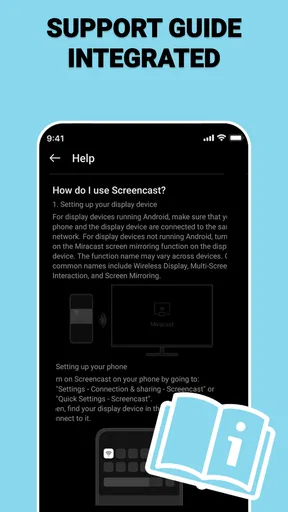
First things first, setting up the USB Connector Cast Phone to TV app is a breeze. Once you download it from the app store, it guides you through a straightforward process to connect your phone to your TV. All you need is a USB cable and a bit of patience. I was pleasantly surprised by how user-friendly the interface is. It’s designed in a way that even those who aren't super tech-savvy can navigate without any hiccups.
Features Worth Noting
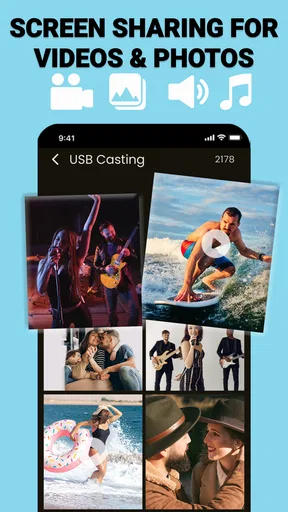
One of the standout features is its versatility. Whether you’re using Android or iOS, this app has you covered. The app supports a wide range of file types, so whether you're streaming video, sharing photos, or even displaying documents, it handles it all. And let’s talk about the quality. The streaming quality is impressive. I was able to watch my favorite shows without any noticeable lag or drop in resolution.
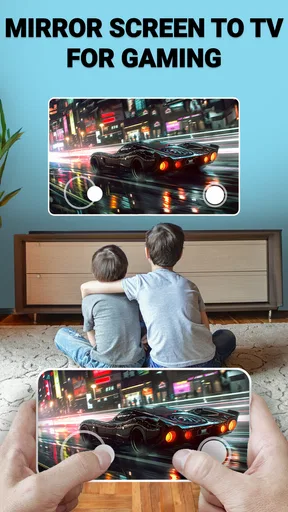
Another cool feature is the ability to mirror your phone’s screen. This means you can share whatever is on your phone directly on your TV. Want to show off your latest vacation pics or present a slideshow? Easy peasy. It's also a great tool for gaming. Playing a mobile game on the big screen is a whole new experience!
Real-Life Usage and Performance
In terms of performance, I found the app to be quite reliable. The connection was stable, and there were no random disconnects, which is crucial when you're in the middle of something important. However, it does depend a bit on the quality of your USB cable and TV's compatibility, so make sure those are up to par.
While the app is efficient, it does have a learning curve if you’re not familiar with tech setups. The initial configuration might require a couple of tries, but once you get the hang of it, you’ll be casting like a pro.
Comparing the alternatives
Compared with a TV’s built-in casting feature, a connector app can be useful when you want one route for different kinds of phone content rather than relying on each individual app to provide its own cast button. Built-in options can be the cleaner choice when they already work with your devices: they avoid adding a separate setup step and may be easier for routine streaming. For a one-off slideshow or a document, full-screen mirroring can be more direct than hunting for a compatible TV app.
Compared with a dedicated streaming device, this approach makes most sense when you already have a suitable television and want to share what is on your phone. A streaming device is generally the more natural option if your main goal is watching services from the TV itself, rather than displaying phone content. And if you need a dependable presentation setup at work or school, I would test the exact equipment in advance or use the institution’s established connection method rather than assuming a new app will work on the day.
Small trade-offs that shape the experience
Wired setups trade freedom of movement for a direct physical connection: the phone has to stay near the cable, and the cable or adapter becomes part of the setup. Wireless mirroring avoids that tether, but can depend on the devices and network working together. Neither route is automatically best. If you are sharing a recipe while cooking, moving around with the phone may matter more than a direct cable; if you are showing a long document beside the TV, remaining close to the screen may be no problem.
For video, I would also distinguish between mirroring and playing through a service’s own TV app. Mirroring is handy for material already on the phone or for content without a convenient TV interface. A native TV app is often less fiddly for regular viewing and avoids keeping the phone’s display active as the source. That makes this a flexible companion for occasional use, rather than my first pick as a replacement for a television’s normal entertainment setup.
There is a cost decision too. The app is free to download, but in-app purchases range from $9.99 to $99.99 per item. I would try the basic setup and confirm that it works with my equipment before paying for anything. If a purchase is needed for the feature you want, compare that cost with simply using an existing TV casting option or a connection method you already own. The sensible choice depends on how often you expect to mirror and how much convenience the paid option would actually add.
Who should try it—and who should not
I would recommend giving it a try if you regularly show phone-based photos, documents, or short videos to other people and are comfortable checking cable and TV compatibility. It may also suit someone who wants to experiment with mobile games on a larger screen, provided they are happy to test for delay and accept that the phone remains central to the experience. A quick connection test at home is a better way to judge that use than assuming every game will feel good on a television.
I would skip it if you expect a guaranteed plug-and-play connection with no attention to ports or device support, or if your main need is simply to watch subscription content on a TV that already has the relevant app. I would also choose another method for a time-critical presentation unless I had already tested the setup. The app’s broad purpose is appealing, but the practical result still depends on the devices and connection you bring to it.
Final Thoughts
All in all, the USB Connector Cast Phone to TV app is a handy tool for anyone looking to enhance their multimedia experience. It’s like having your personal little cinema at home. The app is quite effective in bridging the gap between your phone and TV, making it easier to enjoy content on a larger screen.
If you're a fan of watching your favorite series or playing games on a big screen, this app is worth checking out. Just make sure your TV supports USB connections, and you’re good to go. Happy casting!
Pros
- Easy setup with clear instructions.
- High-quality video streaming support.
- Compatible with multiple devices.
- Low latency for real-time casting.
- No additional hardware required.
Cons
- Limited support for older devices.
- Requires stable Wi-Fi connection.
- Ads can be intrusive during use.
- Some features locked behind paywall.
- Occasional connectivity issues.
FAQs for USB Connector Cast Phone to TV
What is USB Connector Cast Phone to TV used for?
USB Connector Cast Phone to TV is designed to help users connect their smartphones directly to a TV, allowing them to mirror their device's screen on a larger display. This app is perfect for presentations, streaming videos, or playing games on a bigger screen without needing a wireless connection.
Is USB Connector Cast Phone to TV compatible with all smartphones and TVs?
The app is compatible with most modern Android and iOS devices. However, compatibility also depends on the TV's ports and the cables used. It's crucial to ensure that your TV has a USB port and supports screen mirroring functions for optimal performance.
Do I need any additional equipment to use this app?
Yes, you will need a compatible USB cable to connect your phone to the TV. In some cases, an HDMI adapter may also be required, depending on the TV's available ports. Ensure that the cables are of good quality to prevent any connectivity issues.
Are there any limitations when using USB Connector Cast Phone to TV?
While the app is generally reliable, users may experience latency or lag, especially when streaming high-definition content. Additionally, some apps on your phone might not support casting due to DRM protection. It's advisable to check the app's compatibility with specific content.
Is USB Connector Cast Phone to TV easy to set up and use?
The app is designed to be user-friendly, with a straightforward setup process. Users simply need to connect their devices with the appropriate cable and follow the on-screen instructions. The interface is intuitive, making it accessible even for those who are not tech-savvy.


